> ## Documentation Index
> Fetch the complete documentation index at: https://docs.fireflo.au/llms.txt
> Use this file to discover all available pages before exploring further.
# Sender IDs and templates
> Requesting the names you send from and the wording you send — the four approval states, the placeholder grammar, and why an edit suspends a live one.
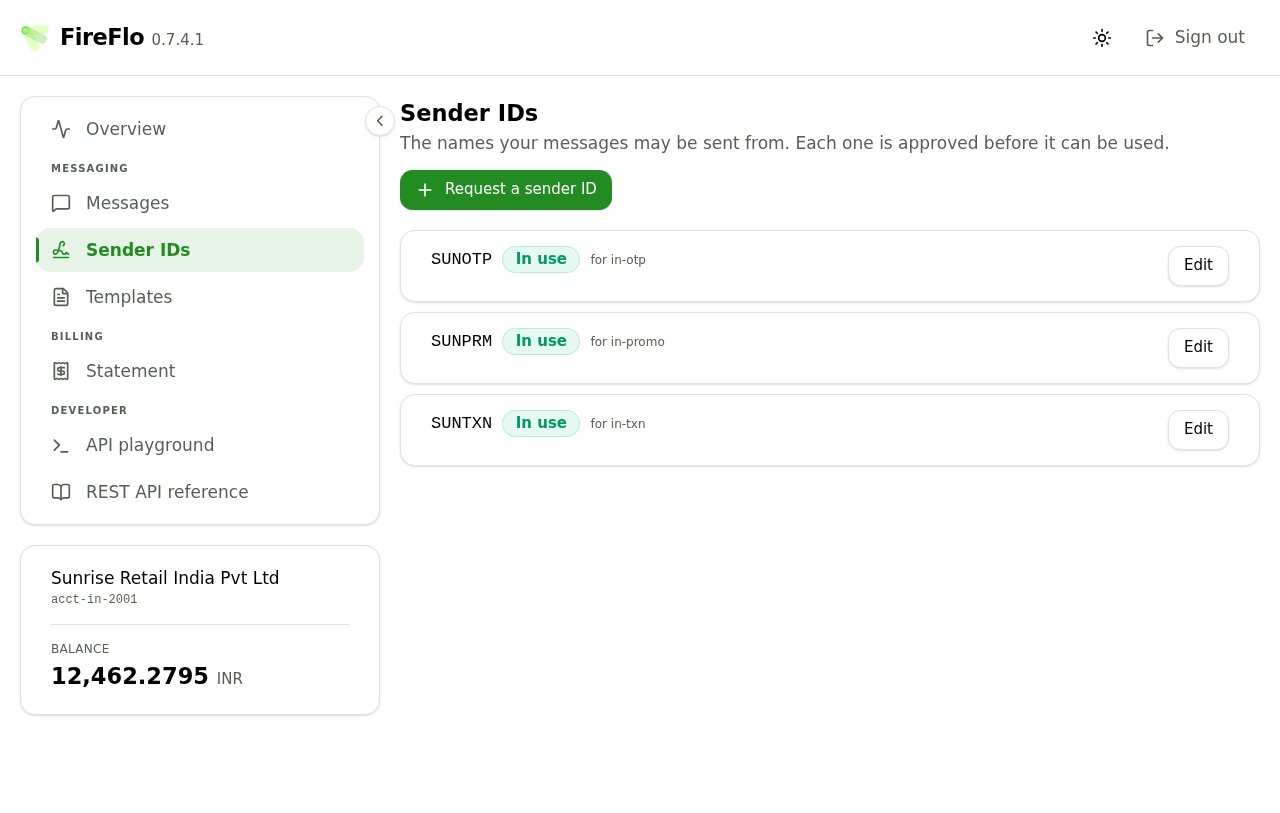
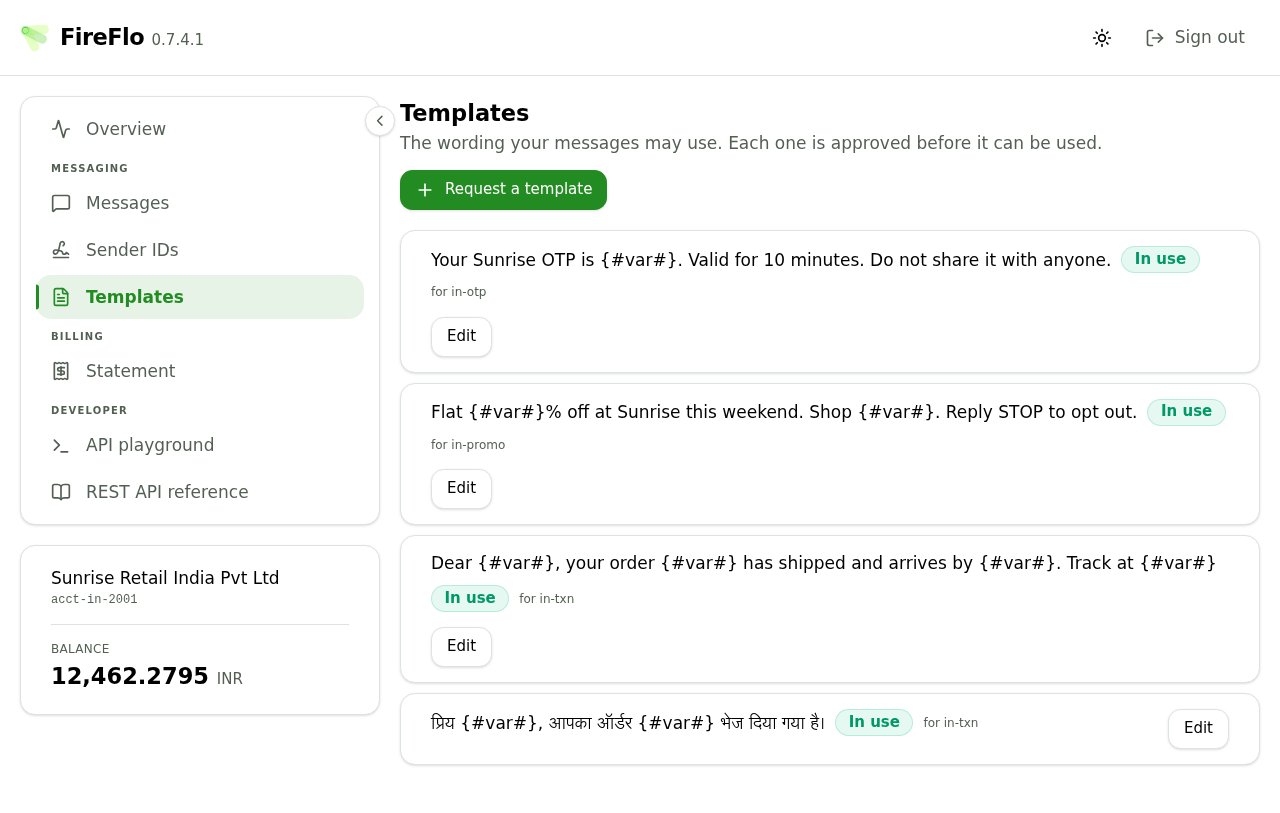
Two screens, one shape. **Sender IDs** are the names your messages may be sent from. **Templates**
are the wording they may use. Each one is approved by your provider before it can be used.
**Nothing on these screens approves anything.** Every save is a request. This is the part customers
are most often surprised by: a registration you have just created and can see in the list is not yet
usable.
Whether either is enforced at all is your provider's choice. Where it is — India's DLT regime being
the obvious case — an unregistered sender or unapproved wording is refused at submission.
## The four states
| Badge | On the API | Meaning |
| :- | :- | :- |
| **Waiting for approval** | `PENDING` | Submitted, not yet reviewed. Not usable |
| **In use** | `APPROVED` | Approved and live |
| **Not approved** | `REJECTED` | Refused, with your provider's reason shown |
| **Withdrawn** | `WITHDRAWN` | Was approved, switched off by your provider. Not usable |
The middle column is what [`/secure/senders`](/reference/api/senders) and
[`/secure/templates`](/reference/api/templates) return, so the two surfaces describe the same four
states rather than eight. **Only `APPROVED` is usable** — the other three all mean a message will be
refused, for different reasons.
Each row also says which product it applies to, and which login — either a named one or **all your
logins**.
 ## Requesting a sender ID
One field. The refusals are worth knowing before you hit them:
* A sender ID is at most 64 characters, **but SMPP allows 21** — anything near the upper bound could
be stored here and never delivered.
* Leading or trailing spaces are refused outright. A sender ID is compared exactly, and a trailing
space is invisible in every place it is displayed.
* It must be printable ASCII.
## Requesting a template
A **name**, for you and your provider to recognise it, matched against nothing. Then the **wording**,
which is matched — exactly, apart from the gaps you mark.
> Put `{#var#}` where the message changes — a name, a code, an order number. Everything else has to
> match exactly.
Three placeholders exist:
| Placeholder | Accepts |
| :- | :- |
| `{#var#}` | Anything |
| `{#num#}` | Digits 0–9 |
| `{#alp#}` | Letters, spaces and name punctuation |
A live preview shows an example message your template would accept, which is the fastest way to catch
a template that is narrower or wider than you meant.
### Where templates go wrong
The form refuses each of these with a sentence rather than a code:
**A token spelled wrong.** `{#VAR#}` or `{#Var#}` is not a placeholder. Write the token lower case
with no spaces inside it — that is the spelling, not a statement about what it accepts.
**Something that looks like a placeholder and is not**, such as `{#VAR}` or `{{#var#}}`. The
characters around a real placeholder are matched literally, so this would only ever approve a message
carrying them exactly as written.
**Two placeholders touching.** Two variables with nothing between them cannot be told apart, so they
act as one variable of twice the length. Put the wording that separates them in between.
**A template of nothing but a placeholder**, which accepts every message — the same as having no
template at all.
You may also get a warning rather than a refusal, where the wording repeats itself around the
changing part. That can make a template match less than you expect, and is worth checking with your
provider.
## Stamps
Under **Stamps to ask for** you can propose the values your provider attaches to every message on
this registration — under DLT, your entity and template identifiers.
> **Asking is free:** nothing here reaches a message until your operator accepts it, so an approved
> registration keeps working meanwhile.
If you have already asked and had no answer, saving replaces what your provider will see rather than
queueing a second request.
## Which login
Where your account has more than one API login, you can bind a registration to one of them.
**Leave this on "All my logins" unless you know you want otherwise.** Bound to one login, a
registration does nothing for the others — and a login with nothing approved for it can send nothing
at all.
## Editing something that is in use
Changing the wording, the sender ID, the name, the note or the login on a live registration sends it
back for approval, and the save button asks you to confirm:
> This stops being usable until an operator approves the change.
If it is your only registration in use, it says so, because the consequence is larger:
> This stops being usable until an operator approves the change — and it is your only one in use, so
> nothing will be accepted from this account until then.
**Changing only the proposed stamps suspends nothing** and saves without confirmation, since those do
not take effect until accepted anyway.
If you need altered wording live before the old wording can go, request the new one as a separate
template and let your provider withdraw the old one afterwards.
## Doing this from your own code
Everything on these two screens is also on the REST API, so a customer with many registrations does
not have to work through the portal one at a time:
List, request, change and withdraw sender IDs.
The same four calls for wording.
Same credentials you send with, and the same rules — what you write is a **request**, and the API
says which state each registration is in and whether registrations are being enforced on your
account at all.
**Available from gateway 0.9.7.** If those endpoints answer `404`, your provider is running an
older gateway and these screens are the way to ask.
This documentation is built and hosted on [Mintlify](https://mintlify.com), a developer documentation platform.
## Requesting a sender ID
One field. The refusals are worth knowing before you hit them:
* A sender ID is at most 64 characters, **but SMPP allows 21** — anything near the upper bound could
be stored here and never delivered.
* Leading or trailing spaces are refused outright. A sender ID is compared exactly, and a trailing
space is invisible in every place it is displayed.
* It must be printable ASCII.
## Requesting a template
A **name**, for you and your provider to recognise it, matched against nothing. Then the **wording**,
which is matched — exactly, apart from the gaps you mark.
> Put `{#var#}` where the message changes — a name, a code, an order number. Everything else has to
> match exactly.
Three placeholders exist:
| Placeholder | Accepts |
| :- | :- |
| `{#var#}` | Anything |
| `{#num#}` | Digits 0–9 |
| `{#alp#}` | Letters, spaces and name punctuation |
A live preview shows an example message your template would accept, which is the fastest way to catch
a template that is narrower or wider than you meant.
### Where templates go wrong
The form refuses each of these with a sentence rather than a code:
**A token spelled wrong.** `{#VAR#}` or `{#Var#}` is not a placeholder. Write the token lower case
with no spaces inside it — that is the spelling, not a statement about what it accepts.
**Something that looks like a placeholder and is not**, such as `{#VAR}` or `{{#var#}}`. The
characters around a real placeholder are matched literally, so this would only ever approve a message
carrying them exactly as written.
**Two placeholders touching.** Two variables with nothing between them cannot be told apart, so they
act as one variable of twice the length. Put the wording that separates them in between.
**A template of nothing but a placeholder**, which accepts every message — the same as having no
template at all.
You may also get a warning rather than a refusal, where the wording repeats itself around the
changing part. That can make a template match less than you expect, and is worth checking with your
provider.
## Stamps
Under **Stamps to ask for** you can propose the values your provider attaches to every message on
this registration — under DLT, your entity and template identifiers.
> **Asking is free:** nothing here reaches a message until your operator accepts it, so an approved
> registration keeps working meanwhile.
If you have already asked and had no answer, saving replaces what your provider will see rather than
queueing a second request.
## Which login
Where your account has more than one API login, you can bind a registration to one of them.
**Leave this on "All my logins" unless you know you want otherwise.** Bound to one login, a
registration does nothing for the others — and a login with nothing approved for it can send nothing
at all.
## Editing something that is in use
Changing the wording, the sender ID, the name, the note or the login on a live registration sends it
back for approval, and the save button asks you to confirm:
> This stops being usable until an operator approves the change.
If it is your only registration in use, it says so, because the consequence is larger:
> This stops being usable until an operator approves the change — and it is your only one in use, so
> nothing will be accepted from this account until then.
**Changing only the proposed stamps suspends nothing** and saves without confirmation, since those do
not take effect until accepted anyway.
If you need altered wording live before the old wording can go, request the new one as a separate
template and let your provider withdraw the old one afterwards.
## Doing this from your own code
Everything on these two screens is also on the REST API, so a customer with many registrations does
not have to work through the portal one at a time:
List, request, change and withdraw sender IDs.
The same four calls for wording.
Same credentials you send with, and the same rules — what you write is a **request**, and the API
says which state each registration is in and whether registrations are being enforced on your
account at all.
**Available from gateway 0.9.7.** If those endpoints answer `404`, your provider is running an
older gateway and these screens are the way to ask.
This documentation is built and hosted on [Mintlify](https://mintlify.com), a developer documentation platform.