
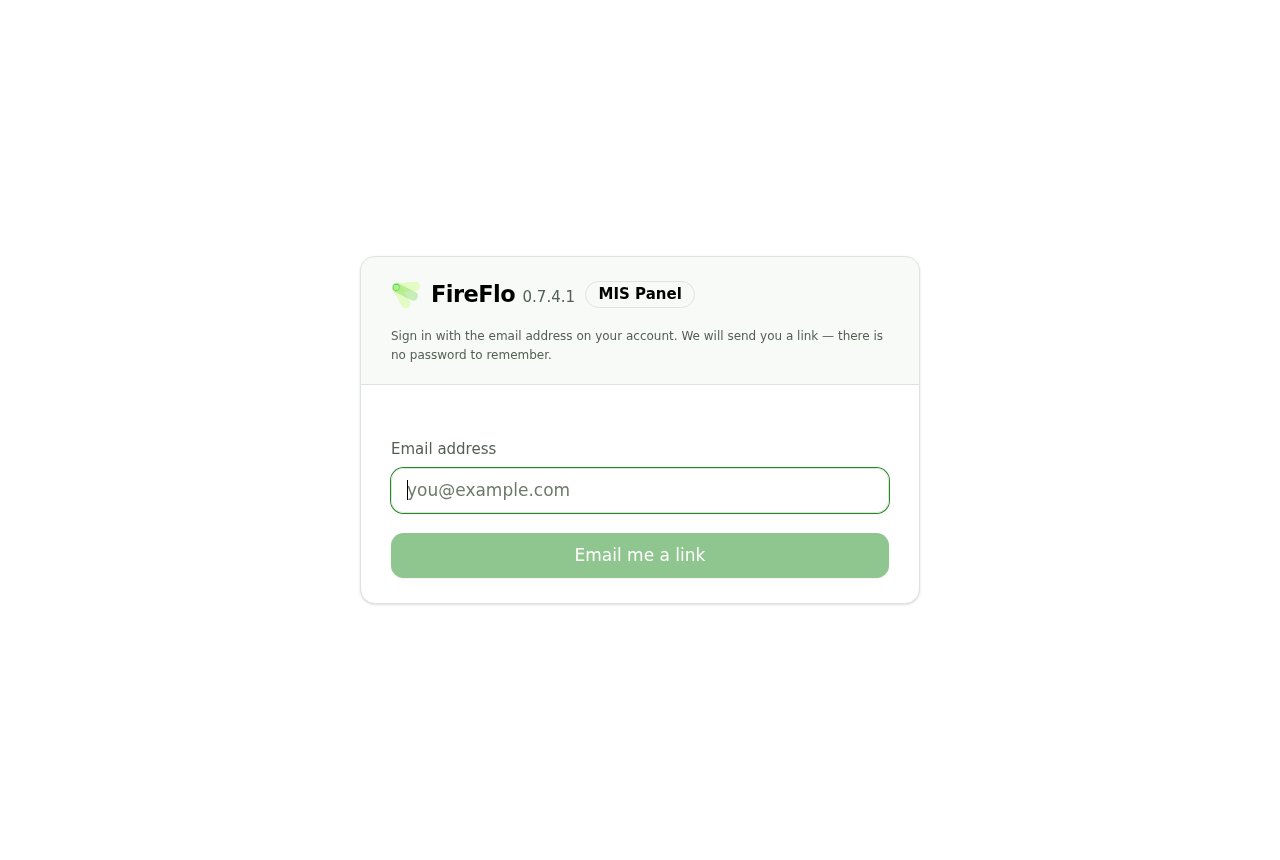
The portal sign-in screen. One field, no password, and a version number that tells you which gateway release this panel was built for.
Sign in with the email address on your account. We will send you a link — there is no password to remember.
What happens next
Whatever you typed, the screen says the same thing:Check your inbox. If that address is on an account, a sign-in link is on its way. It works once and expires in 15 minutes.
That answer does not change if the address is wrong. It is identical for an address on an
account, an address on a disabled account, and an address that has never been seen.This is deliberate. A form that said “no such account” would let anyone test a list of addresses and
learn who your provider’s customers are. The cost of that protection is that a typo looks exactly
like success — so if nothing arrives, check the address before assuming a fault.
Nothing after a minute or two? Check the spam folder, then send it again — the newest link is the one that works.That last clause matters: requesting a second link does not leave the first one valid. Follow the most recent email.
Following the link
The link signs you in and lands you on Overview — not on your messages, because the first question after signing in is usually “how are things”, not “show me row 4,000”. If the link has already been used, or is more than fifteen minutes old:That link did not work. Sign-in links work once and expire after 15 minutes. Ask for a new one.
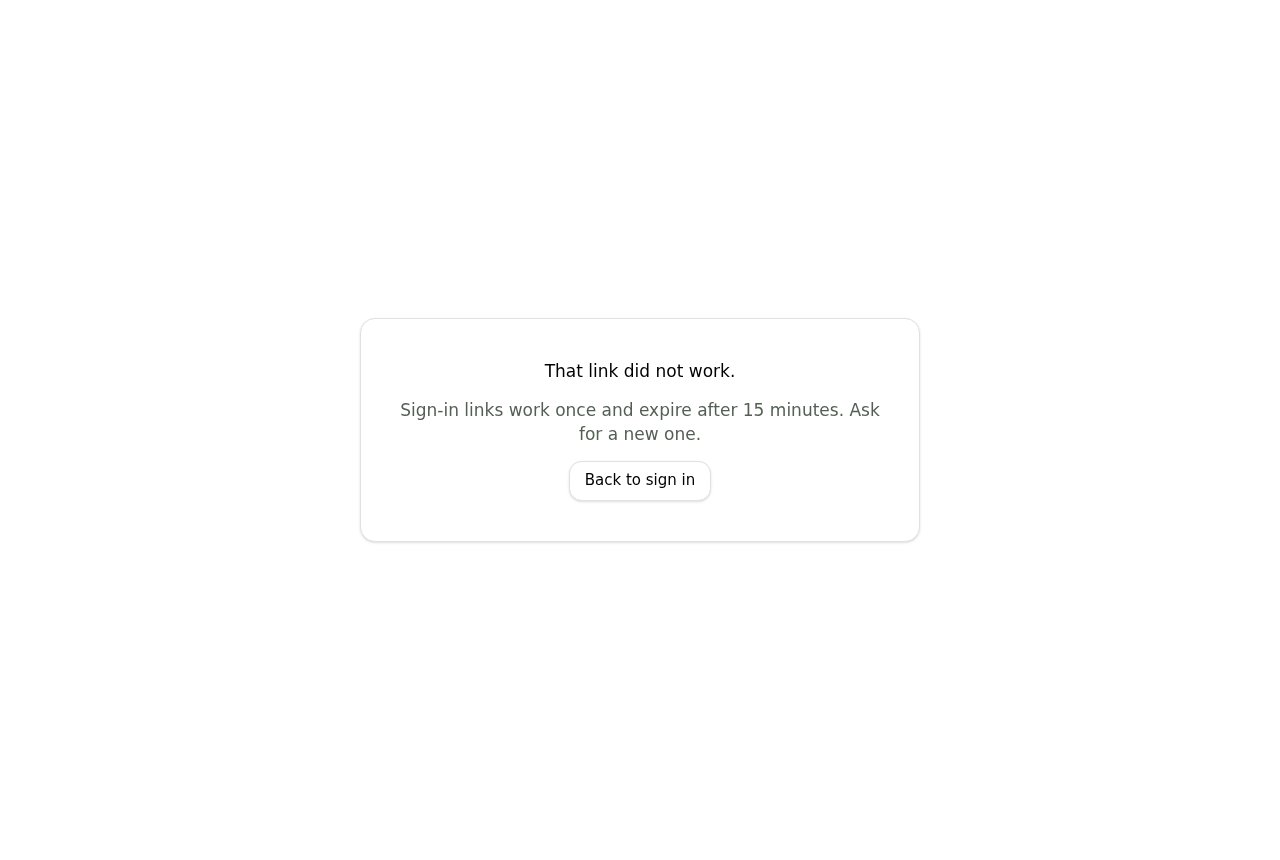
What a used or expired link shows. Both are normal — a link is spent the moment it succeeds, so following the same email twice produces this.
Limits
Sign-in requests are rate limited per account and per network. The per-account limit answers with the same neutral sentence as a success, so you will not be told you have hit it. The per-network limit does say so:Too many sign-in requests from this address. Try again shortly.
When it is not available at all
If your provider has not configured the panel to send mail, you get a real error rather than a link that never comes:Sign-in by email is not available on this panel. Ask your account manager.That is a deployment setting on their side, not something you can work around.